Replace color swatches with image swatches on Shopify product pages

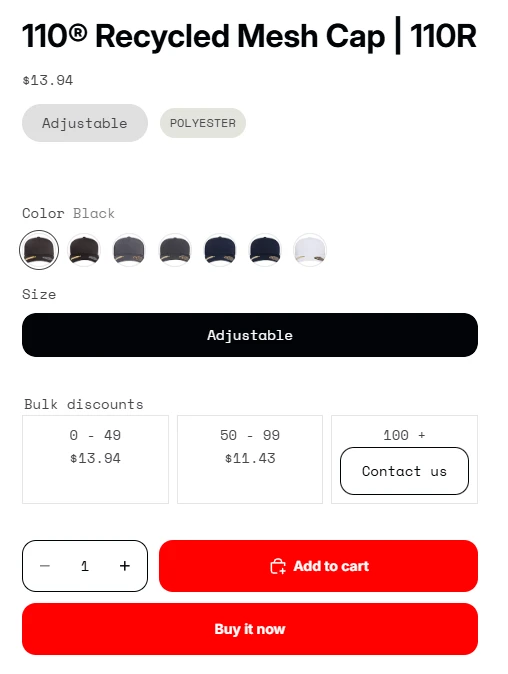
On many Shopify stores, color swatches are still just flat circles or squares. They’re quick, but they’re often inaccurate. A hex value can’t show texture, finish, or pattern.
A practical upgrade is to show a small product image inside each swatch. Instead of guessing what “Stone” or “Ocean” means, the customer sees it right away. This is especially helpful on mobile, where variant choices need to be obvious at a glance.
What Shopify already supports with “native” swatches
If you’re using a modern theme (like Horizon), Shopify supports swatches for the variant picker block in the theme editor. They're powered by category metafields, and the variant picker block can typically render them as circle or square styles.
That said, “native swatches” typically fall into two buckets:
Color-based swatches (hex or named colors)
Image-based swatches (supported via the image field of the metaobject)
Even when the theme supports swatches, many stores still end up with a “close enough” color dot. The swatch might be technically correct, but it still doesn’t answer the shopper’s real question: “What does this look like on the product?”
Why image swatches usually work better than color dots
A color dot is an abstraction. For some products that’s fine, for others it’s misleading.
Image swatches help most when:
Fabric and material change the perceived color Think knits, suede, brushed metal, glossy ceramics, or anything textured.
Variants include patterns, not just colors “Navy” vs “Navy stripe” can’t be expressed as one hex code.
Customers need confidence before switching variants If selecting a variant changes the featured media (as all themes do), an image swatch reduces back-and-forth.
In Shopify, variant images are a first-class concept. You can assign an image to each variant in the admin, and that image becomes accessible in Liquid.
How to implement image swatches in Shopify
The core idea is simple:
Keep the existing variant picker behavior (radio inputs / buttons).
Change the swatch “label” UI to display
variant.imageinstead of the swatch image.
Step-by-step outline
Assign images to variants in Shopify admin In the product’s Variants area, set an image for each color variant. If you have options other than the color, don't forget to update all relevant variants.
Update the theme’s variant picker markup Usually, this is handled in something like
product-variant-picker.liquid(theme structure varies). The goal is to render a swatch label that uses the variant image.Add lightweight CSS for sizing and selected state Keep it consistent but make sure the image is displayed properly.
Keep accessibility intact The input should remain keyboard-focusable, and the label should have a readable name (screen readers should still announce the option value).
A practical Liquid pattern (image swatch per variant)
Below is a simplified pattern you can adapt inside the option loop. It uses the variant’s attached image, which Shopify exposes as variant.image / variant.featured_image.
<variant-picker>
  <form class="variant-picker__form">
    {%- for product_option in product.options_with_values -%}
      <fieldset>
        <legend>
          {{ product_option.name -}}
        </legend>
        {%- for product_option_value in product_option.values -%}
          <label>
            <input
              type="radio"
              name="{{ product_option.name | escape }}-{{ block.id }}-{{ product_resource.id }}"
              value="{{ product_option_value | escape }}"
              aria-label="{{ product_option_value.name }}"
            >
            {% liquid
              assign variant_image = product_option_value.variant.featured_media
              assign swatch_image_url = variant_image | image_url: width: 100
              assign swatch_value = 'url(' | append: swatch_image_url | append: ')'
            %}
            <span
              class="swatch"
              style="--swatch-background: {{ swatch_value }};"
            >
            </span>
          </label>
        {%- endfor -%}
      </fieldset>
    {%- endfor -%}
  </form>
</variant-picker>
Notes that matter in real stores:
Use small image sizes (
width: 96or similar) to avoid loading full-resolution media - ensure you get the dimensions right to avoid a blurry result.Decide what to do when a variant has no image (fallback to a default swatch style or product featured media).
If your product has multiple options (Size + Color), you’ll typically render image swatches only for the Color option, and keep buttons for the rest.
Don't forget to properly comment your code.
FAQ
Does Shopify support swatches without custom code? Yes, many themes support swatches via the Variant picker block, and Shopify documents swatch behavior tied to category metafields. It's highly recommended to avoid an app for this case.
Do I need variant images for this to work well? Yes. The whole point is that each color variant has its own image assigned in the admin. Shopify supports attaching images per variant. However, you can alternatively use a variant metafield, if you want to reserve the featured image.
Will image swatches slow down the page?
They can if you load large images. Use image_url with a small width and keep swatch dimensions tight. You can also use loading: "lazy".
What if my store uses separate products per color? You can still use the same idea, but the swatches become links to sibling products instead of variant inputs. That’s a different implementation, but the UX benefit is similar.
Conclusion
Color dots are easy, but they often hide the truth of what a variant looks like. On Shopify, you already have the data you need if each variant has an image assigned. From there, replacing swatches with variant images is mostly a theme-layer change: adjust the variant picker markup, add simple styling, and keep the interaction accessible.
If you want fewer wrong clicks and faster variant decisions, image swatches are a straightforward improvement that fits naturally into Shopify’s product and variant model.