Shopify keyboard shortcuts that actually save time
If you’re working in the Shopify admin daily, navigation becomes muscle memory. Menus, clicks, page loads, repeat.
Shopify quietly offers a keyboard shortcut system that cuts out some of that friction, but it’s rarely talked about and easy to miss.
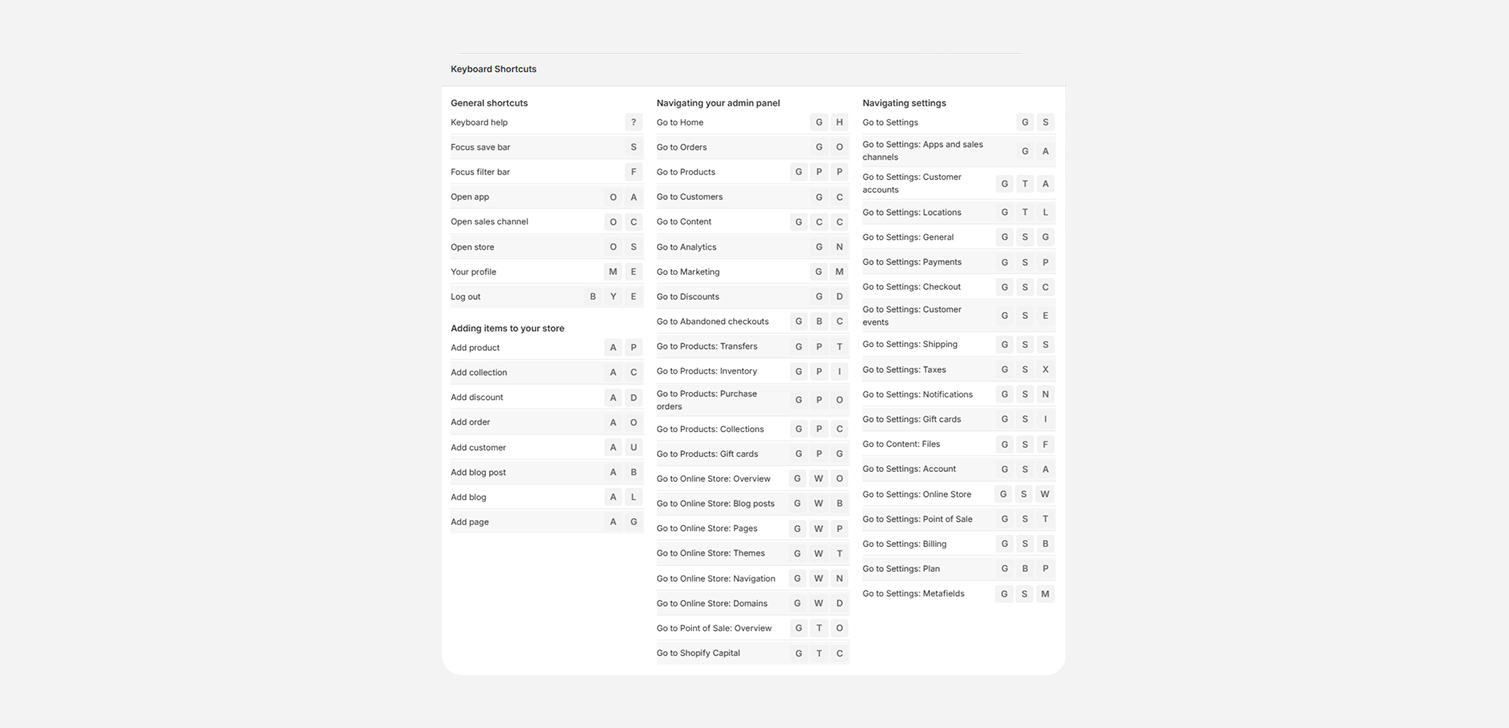
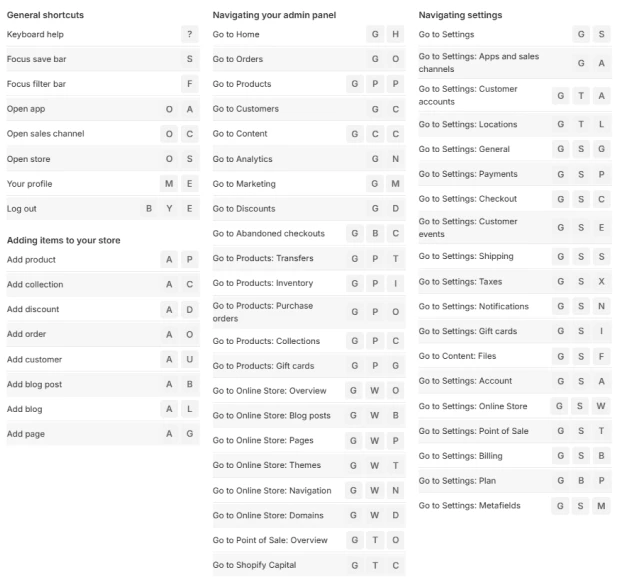
You can open the shortcut list by pressing Shift + /. What you’ll see is a long list of sequences that let you move around the admin, open settings, and create resources without touching the mouse.
These shortcuts are pressed in sequence, not at the same time. Think G, then O. Not G+O.
Below is a practical breakdown of what exists and where it’s actually useful.
General shortcuts that work almost everywhere
These are global shortcuts. They tend to work reliably across the admin and are worth remembering.
? opens keyboard help
S focuses the save bar
F focuses the filter bar in list views
O A opens apps
O C opens sales channels
O S opens the online store
The filter focus shortcut alone is useful if you spend time filtering orders, customers, or products. It saves repeated clicks and keeps your hands on the keyboard.
Navigating the admin panel without the sidebar
Most of Shopify’s navigation shortcuts start with G. Think of it as “go to”.
Common destinations:
G H go to Home
G O go to Orders
G P P go to Products
G C go to Customers
G N go to Analytics
G M go to Marketing
G D go to Discounts
There are also deeper jumps inside product and store sections:
G P I inventory
G P C collections
G W T themes
In practice, G O, G P P, and G W T are the ones that tend to stick.
Settings navigation shortcuts
Settings has its own shortcut namespace, and this is where the list gets long.
All settings shortcuts start with G S.
Some of the more useful ones:
G S G general
G S P payments
G S C checkout
G S S shipping
G S X taxes
G S N notifications
G S M metafields
There are also shortcuts for more specific areas:
G A apps and sales channels
G T A customer accounts
G S F content files
G S W online store
G S T point of sale
G S A account
If you regularly bounce between Payments, Checkout, and Shipping, these shortcuts save time.
Creating resources from anywhere
Shopify also supports “add” shortcuts. These are straightforward and predictable.
All of them start with A:
A P add product
A C add collection
A D add discount
A O add order
A U add customer
A B add blog post
A L add blog
A G add page
These work well when you already know what you want to create and don’t need context first.
A note on the theme editor
The theme editor technically has shortcuts, but many of them don’t work consistently. Some fail silently, others only work in specific states. In real use, it’s not reliable enough to build habits around.
For now, the admin-level shortcuts are where the value is.
Closing thoughts
Shopify’s keyboard shortcuts aren’t hidden, but they’re not surfaced either.
If you live in Orders, Products, or Settings, a handful of sequences can reduce friction over time. Press Shift + /, skim the list, and keep the ones that fit how you already work. That’s enough.