Visual filters: the fastest way to make Shopify collection filtering easier
When people can’t understand your filters, they stop using them. Or worse, they pick the wrong option and think you don’t have what they want.
This is common on a lot of Shopify stores. The filters look complete, but the customer has no idea what half the words mean. It’s not always because the customer is careless. Many times, the store just has product language that makes sense internally, but not to a first-time buyer.
If you want shoppers to find the right product quickly, you have to make filtering feel obvious. There are two practical ways to do it, and Shopify stores can use either depending on the catalog.
Why unclear filters break collection pages
Filtering works when customers can scan options and make confident choices. The moment they have to pause and decode terms, the whole thing slows down.
This shows up in a few common ways:
Industry terms that shoppers don’t know (or know differently).
Abbreviations that only make sense to the team or supplier.
Attributes that are real, but not meaningful to a buyer.
Duplicate concepts presented as separate filters (like "Fit" and "Cut" that overlap).
It gets worse when your catalog is broad. Apparel, skincare, supplements, auto parts, home goods. These categories often have attributes that matter a lot, but only after you understand them.
A customer who’s confused won’t always complain. They’ll just bounce, or browse randomly, or choose the wrong thing and return it later. Filters are supposed to reduce effort, not add to it.
Option 1: Add short descriptions for each filter
The first approach is simple: explain each filter in plain language.
This can be done a few ways on Shopify:
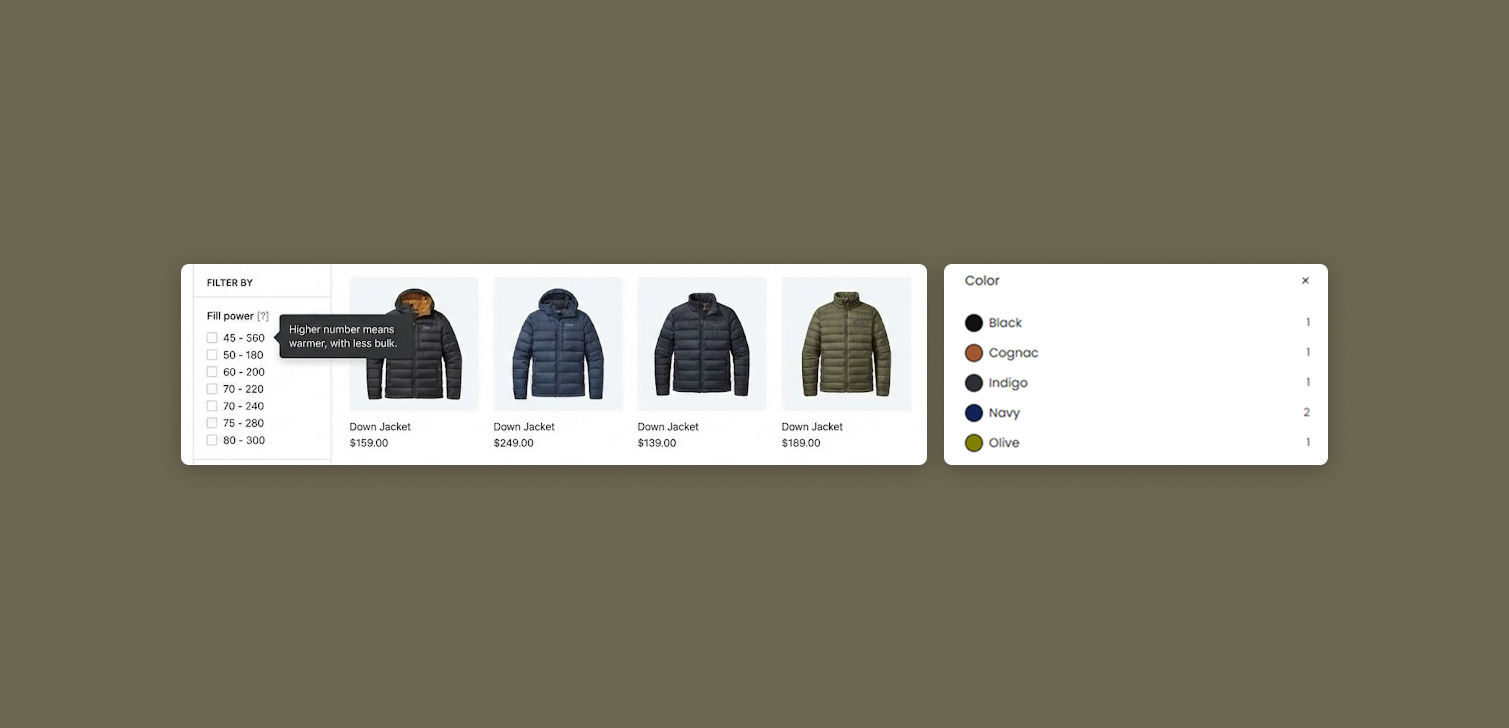
A small "?" icon next to the filter name that opens a short tooltip.
A "What does this mean?" link under the filter group.
A collapsible help row under the filters (especially on mobile).
What you write matters more than the UI pattern. Keep the description short, and use familiar words.
Here are examples that usually work better than the raw attribute name:
"Fill power" - "Higher number means warmer, with less bulk."
"Denier" - "How thick the fabric is. Higher is tougher."
"Undertone" - "Warm = more yellow, cool = more pink."
This approach helps most when the filter is important but not obvious. It’s also safer if you can’t create visuals that are accurate.
The downside is friction. Even a tiny "?" is still extra work. People have to tap, read, then decide. Many won’t bother.
How to achieve this on a Shopify store? Themes rarely provide a way to add these tooltips and description. In almost all cases, this requires custom code.
Option 2: Use visual filters for the values
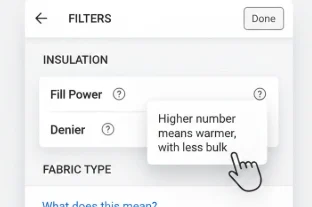
The second approach is usually easier for shoppers: show an image or icon for each filter value.
Instead of:
"Finish: Matte, Satin, Gloss"
You show:
Matte (small swatch image)
Satin (slightly shiny swatch)
Gloss (high shine swatch)
That’s the idea. You remove guessing. People can just pick what looks right.
Visual filters work well when the difference is something you can see:
Color, pattern, material texture
Shape, profile, silhouette
Size ranges (icons can help)
Compatibility cues (simple badges)
They also help in cases where the words are fine, but the customer still wants confirmation. "Slim fit" is a good example. Some people interpret it differently. A simple icon or mini outline can reduce mistakes.
A few notes if you’re considering this on Shopify:
Keep visuals representative. Pretty is secondary. Accuracy comes first.
Make the images consistent. Same size, same style, same background.
Don’t overload it. Use visuals for the filters that cause confusion or hesitation.
Test on mobile. Most filtering happens there, and space is tight.
Done well, visual filters feel like a shortcut. The shopper doesn’t need product knowledge to make progress. They just use recognition.
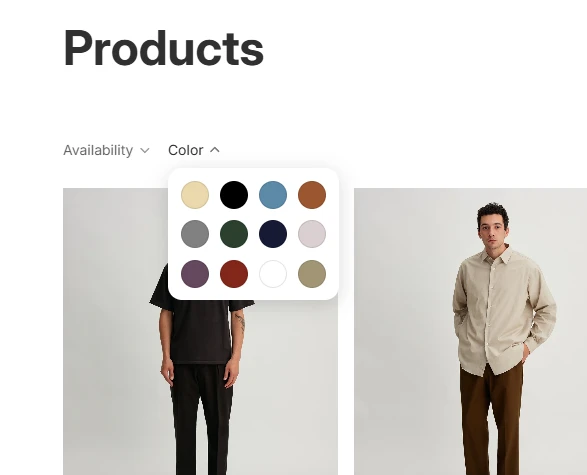
Shopify natively supports swatches, and most official modern themes support them too. Use the Category metafields on your product pages to set and create swatches, and make sure to include the metafield in the Search & Discovery app's filters.
When this is most useful in real Shopify stores
Not every store needs visual filters everywhere. But they’re especially useful in a few situations.
High-SKU collections If a collection has 100+ items, filters have to carry the experience. Visual values help people narrow down fast.
Products with subtle differences Think fabric weaves, lens types, finishes, grip textures, toe shapes. Text alone often falls short.
New customer traffic If a big chunk of visitors are first-timers (ads, SEO, social), you can’t assume they know your terminology.
Returns driven by mismatched expectations If customers frequently say "not what I expected", look at filters. Better filtering can prevent wrong purchases.
A practical way to start is to audit your current filters and mark the ones that meet either rule:
Customers may not know the term.
Customers may interpret the term differently.
Those are the best candidates for descriptions or visuals.
FAQ
Do visual filters help conversion?
They can, mainly by reducing confusion and speeding up decisions. The bigger impact is often on product discovery and fewer dead-ends while browsing.
What’s the easiest filter to make visual first?
Color swatches. They’re familiar, expected, and usually easy to implement with consistent assets.
Should I replace all text with icons?
No. Use visuals where they add clarity. Many filters (price, availability, brand) work fine as text.
How do I avoid visual filters becoming messy?
Set basic rules: consistent sizing, one visual style (photo or icon), and only show visuals for a limited set of key filters.
Are descriptions still useful if I add visuals?
Yes, sometimes. If a concept still needs context (like warmth rating), a short description can support the visual.
Conclusion
If Shopify customers don’t understand your filters, they won’t use them well. That slows down browsing and makes it easier to miss products that actually fit.
You can fix it in two ways: add short, plain-language descriptions, or use visual filters for the values. Descriptions are straightforward and flexible. Visuals are often faster and easier for shoppers to act on.
If you’re choosing where to start, pick one confusing filter group and improve it. Make it obvious, make it consistent, and check how it feels on mobile. Small changes here can make collection pages feel much easier to shop.