Error messages in eCommerce: a simple checklist (with Shopify examples)
When people talk about UX in eCommerce, they usually mean navigation, product pages, and checkout flow. Those matter, but there’s another part that quietly shapes how “smooth” a store feels: error messages.
Errors happen in normal shopping. Inventory changes. Discount codes expire. Payment gets declined. A customer mistypes their password. If your store handles those moments well, people keep going. If it doesn’t, they leave or contact support.
The problem is simple. Most teams test that things work or are easily visible. Fewer teams test that things fail gracefully.
Below is a practical way to test error messages, with examples you’ll run into on Shopify stores.
Where error messages show up in real stores
Error messages aren’t just for checkout. They appear anywhere a shopper takes an action and expects feedback. A few common cases:
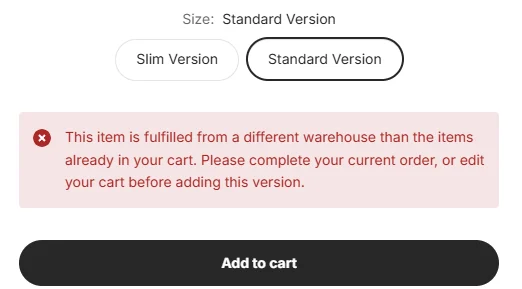
Clicking Add to cart after selecting a quantity that isn’t available
Increasing quantity in the cart (typing in the input or using + / - buttons)
Applying an invalid discount code
Typing into a live search input that triggers a server error
Entering the wrong credentials on login
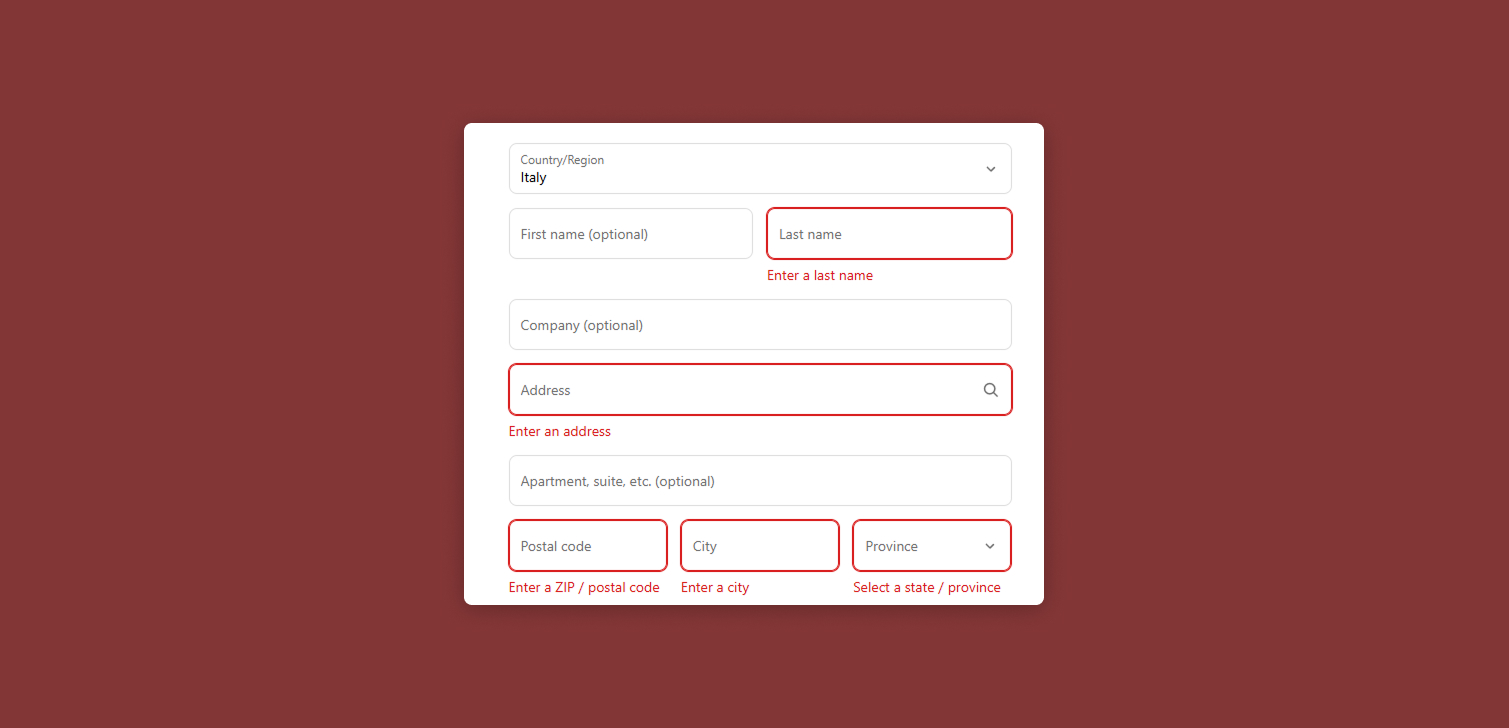
Submitting invalid fields on a registration or contact form
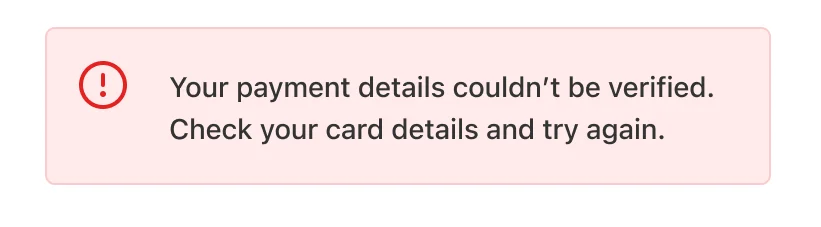
Payment and credit card failures during checkout
On Shopify, a few extra “gotchas” show up a lot:
Product variants that get sold out between page load and Add to cart
Cart updates through AJAX (theme cart drawer) that fail silently
Discounts that are technically valid but not eligible (minimum spend, customer segment)
Checkout custom logic (Shopify Functions) that blocks a discount, shipping rate, or payment method
If you’ve ever seen a shopper retry the same action three times, there’s a good chance the error message was missing, vague, or easy to miss.
The 5 checks that cover most error message issues
Take the cases above and run these checks. You’ll find problems quickly.
Make sure there’s an error message at all This sounds obvious, but it’s the most common failure. A cart quantity update fails and nothing changes. The shopper assumes the site is broken, not that there’s a rule being enforced.
Example: inventory is 5 units, shopper tries to set cart quantity to 8. If the input snaps back to 5, you still need a message explaining why.
Don’t redirect to an error page Some setups respond to errors by sending the customer to a generic error URL or a blank page with a message. That’s almost always worse than showing feedback in context.
Better pattern: show the message on the same page, close to the control that triggered it. If it’s a cart drawer, show it inside the drawer, near the line item.
Make the message visible Visibility is not just “it exists somewhere in the DOM.” People miss messages that appear above the fold, below the fold, or in small text.
A few practical checks:
Trigger the error on mobile, not only desktop
Make sure it’s not hidden behind sticky headers
Confirm contrast is readable
If the error appears off-screen, scroll the user to it or anchor it near the action
Use subtle motion to draw attention (a short slide-in or fade-in)
Animation helps, but it’s not a substitute for placement.
Write a descriptive message “Unexpected error” is rarely useful. Good error messages explain what happened and what to do next.
Compare these:
Bad: "Something went wrong."
Better: "You can’t order more than 5 of this item."
Better (server issue): "Temporary server error. Try again in a few seconds. If it keeps happening, contact us at support@yourstore.com."
You don’t need long paragraphs. You do need specifics.
Make the message disappear when the user fixes it If the user corrects the issue, the error should clear automatically. Persistent errors create doubt. Shoppers wonder if the site is still “mad,” even after they did the right thing.
Example: shopper tries +99 units, sees an error. Then they change it to +1. The error should go away immediately.
Shopify-specific notes that matter in practice
On Shopify themes, error messages often break during customization, especially when cart and product forms are heavily AJAX-based.
A few places to pay attention:
Product form errors (Add to cart): If you’re using
fetchto/cart/add.js, handle non-200 responses and show the message near the Add to cart button. Many themes log the error but never show it.Cart updates: When calling
/cart/change.jsor/cart/update.js, use the response to confirm the requested quantity was applied. If it wasn’t, tell the shopper what happened.Discount code feedback: In-cart discount fields should validate and explain rules, not just say “invalid.” Shopify Plus stores have the Discount Function to help with this - it's possible to implement custom rejection messages.
Checkout logic on Plus: If you’re using Shopify Checkout Extensions, confirm the message is actually surfaced in the theme or checkout UI where possible. Custom logic that silently blocks a discount is a conversion killer.
A simple internal habit helps: every time you add a rule (limits, eligibility, exclusions), add a matching error message requirement.
FAQ
What’s the quickest way to test error messages without a QA team? Make a short “error checklist” and run it on staging. Trigger each failure once on desktop and once on mobile. Screen record it so fixes are clear.
Should error messages be polite or direct? Direct is usually better. Say what happened, what the user can do, and keep it short.
Where should the message appear in a Shopify theme? As close to the action as possible. Add to cart errors near the button. Cart quantity errors near the line item. Form errors near the field.
Do I need different messages for different failure types? Yes, when the fix differs. Inventory limit and server error need different guidance. Otherwise users guess, and they often guess wrong.
Conclusion
Error messages are part of the shopping experience, not an edge case. If you only test happy paths, you’re leaving a lot of UX to chance.
Next time you want to decide what to improve on your website, pick the common error moments in your store, then run the five checks: message exists, no redirect, visible, descriptive, and clears when fixed. On Shopify, pay extra attention to AJAX cart flows and any Plus checkout logic, because those are the spots where good messages disappear first.