Keeping your Shopify theme safe if it ever gets deleted

If a Shopify theme is removed from your store, Shopify won’t recover it. That surprises a lot of people, and it’s usually learned the hard way. The good news is that you can set up simple, reliable ways to keep your theme safe. None of them are complicated, and each has its own place depending on your workflow.
Below are 3 practical methods with real pros and cons. Pick the one that fits how you work, or combine them for extra peace of mind.
Back up your theme through GitHub
Connecting your theme to GitHub is the most dependable way to track every change - more than commenting changes. It just takes a bit of setup.
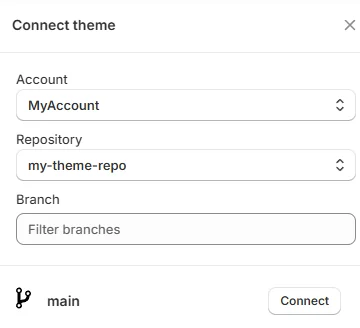
The process is simple. Download your theme files, create a GitHub repository, upload the files, then connect that repository in your Shopify admin under Import > Connect from GitHub. Shopify will pull version history straight from GitHub.
Why GitHub helps
Every change is tracked in detail, from a small CSS tweak to a setting update.
You can roll back to any earlier version within seconds.
The theme stays fully backed up outside Shopify.
There’s no extra cost.
Where it may fall short
Upgrading to a new official theme version is harder because GitHub tracks your customized version.
The initial setup takes some patience.
Many developers prefer GitHub because they already use it daily. For non-technical store owners, it’s still approachable, and once it’s in place, it runs quietly in the background.
Download the theme on a regular schedule
A straightforward option is downloading your theme files every so often. Shopify emails a link to the ZIP file. Just remember to open the link, not leave it sitting in your inbox.
This approach is simple, and you don’t need any tools. It works well for stores that don’t update their theme very often.
Why manual downloads work
It’s free.
You won’t run into problems when upgrading to newer theme versions.
It’s easy to understand, even for non-technical users.
The downside
You have to remember to do it. That’s the catch.
Some store owners set a reminder on their calendar. Others download a new copy only after major changes.
Install an app that handles backups automatically
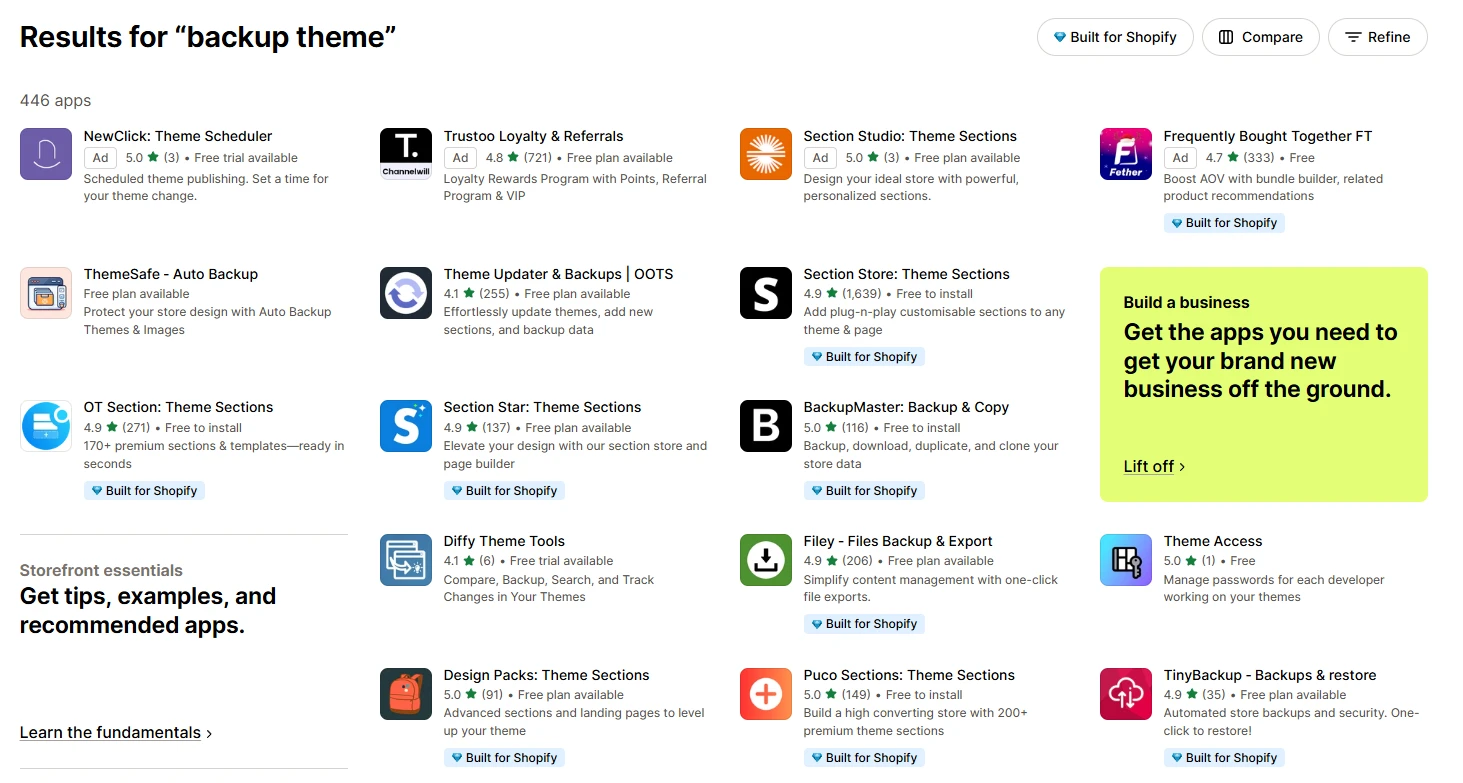
Shopify’s app ecosystem includes both general backup apps and theme-specific ones. These apps download your theme at regular intervals. You set it once, and it continues handling backups in the background.
This is helpful for merchants who want set-and-forget protection without managing GitHub or remembering manual downloads.
Why apps are helpful
No manual work beyond installing and configuring the app.
Many apps include extra features like change tracking or alerts.
Upgrading to new theme versions normally stays trouble-free.
It's the kind of app that won't affect site speed or leave traces.
The trade-offs
Most apps charge a monthly fee.
You’ll rely on the app developer’s infrastructure and reliability.
Some teams prefer paying for convenience. Others use an app temporarily while they refine a more technical workflow.
FAQ
What happens if my theme is deleted without a backup? It can’t be recovered by Shopify support. You’ll need a saved copy to reinstall it. If you just get a fresh version from the developer, all customizations (e.g. new, custom sections) are lost.
Can I rely on Shopify’s duplicate theme feature as a backup? It helps, but duplicates inside the same store won’t protect you if the whole theme section gets cleared or overwritten by mistake.
How often should I back up my theme? Any time you make meaningful edits. If changes are frequent, weekly backups make sense. If changes are rare, monthly is fine.
Is GitHub too technical for non-developers? It takes some learning, but once it’s set up, most of the ongoing work is simple.
Do paid backup apps store my theme securely? Most reputable apps store data safely, but always review their documentation and test recovering a backup before relying on them.
Conclusion
You only need one accidental click to lose a Shopify theme. Setting up GitHub, downloading your theme regularly, or using a backup app can prevent that problem entirely. Pick the method that fits your workflow and keep a copy stored somewhere safe.